Tuesday, April 15, 2014

Simple & easy way to jail users | Ubuntu

Jailkit is a set of utilities that can limit user accounts to a specific directory tree and to specific commands. Setting up a jail is much easier using the jailkit utilities that doing so 'by hand'. A jail is a directory tree that you create within your file system; the user cannot see any directories or files that are outside the jail directory. The user is jailed in that directory and it subdirectories.

Setup the compiler :
Centos       : yum groupinstall "Development Tools"

Ubuntu : apt-get install build-essential

Download & Install
# cd /tmp
# wget http://olivier.sessink.nl/jailkit/jailkit-2.14.tar.gz
# tar -zxvf jailkit-2.11.tar.gz
# cd jailkit-2.11
# ./configure
# make
# make install
Setting up the jail
make clean
export LDFLAGS="-pthread"
./configure && make

Now it’s time to set up the jail directory. Jailed users will see this directory as the root directory of the server. I chose to use /home/jail:
# mkdir /home/jail
# chown root:root /home/jail
# jk_init -v /home/jail basicshell
# jk_init -v /home/jail netutils
# jk_init -v /home/jail ssh
# jk_init -v /home/jail jk_lsh
Add a user
Add a new user with a home directory and bash shell, and set the password:
# useradd -d /home/testuser -m testuser -s /bin/bash
# passwd testuser
Now it’s time to jail this user, use the following command:
# jk_jailuser -m -j /home/jail testuser
Your /etc/passwd should contain something like this now:
testuser:x:1001:1001::/home/jail/./home/testuser:/usr/sbin/jk_chrootsh
Enable bash
By using jk_cp the bash libraries are be copied to the jail:
# jk_cp -v -f /home/jail /bin/bash
Now edit the /home/jail/etc/passwd file and make sure it contains something like this:
testuser:x:1001:1001::/home/testuser:/bin/bash
Maintenance
By using jk_update updates on the real system can be updated in the jail. A dry-run will >show what’s going on:
# jk_update -j /home/jail -d
Help Taken
This is been checked & verified , Working Properly

Wednesday, March 12, 2014

Unlock Modem CDMA Huawei EC156 (Modem Esia Max-D)

Modem Huawei EC156 bundlingan Esia Max-D

Modem ini pun sekarang bisa di pakai untuk kartu flexi EVDO.

Bumbu Bumbu Masakan :
1. Modem Huawei EC156 bundlingan Esia Max-D
2. Rempah Rempah Penyedap

Selanjut nya setelah bumbu masakan sudah siap semua, marilah kita memasak :D

Langkah Langkah Penting :
1. Ekstrak file Rempah Rempah Penyedap.

2. Install program DFS 3.3 dari folder diatas.

3. Tancapkan modem Huawei EC156 ke komputer.

4. Buka program DFS 3.3 yang telah diinstal tadi, lalu tekan tombol "port" (di bagian kiri atas), lalu pilih lah "Huawei Mobile Connect - Application Interface"

5. Tekan tombol SPC (dibagian kiri atas di bawah tombol "port"), maka akan muncul tulisan error di bagian bawah.

6. Klik tab "Memory" lalu di pilihan "Type", pilih lah "CEFS", kemudian pilih tombol "Read"

7. Setelah proses read selesai, pilih lah kolom "SPC1", kemudian akan muncul daftar alamat SPC yang memungkinkan (akan muncul 6 kolom), pilih lah kolom paling terakhir sendiri, dan kode SPC akan muncul di jendela hitam tengah.

8. Masukkan kode SPC yang kita peroleh tersebut ke dalam kolom di sebelah  tombol SPC (dibagian kiri atas di bawah tombol "port")

9. Tekan lagi tombol SPC (dibagian kiri atas di bawah tombol "port"), kali ini akan muncul tulisan "DEVICE UNLOCKED" di bagian bawah.

10. Sekarang klik tab "Programming", lalu tekan tombol "READ" di kolom SPC, setelah itu gantilah kode SPC nya dengan "000000" (tanpa tanda petik). Kemudian tekan tombol "WRITE"

11. JANGAN lupa catat MEID modem tersebut (kalau tidak tahu, MEID ada di sticker di doos modem, atau bisa read dari kolom MEID di langkah 10)

12. Bukalah program CDMA FLASH, lalu masukkan MEID yang tadi telah di catat, lalu tekan tombol calculate flash. akan muncul password untuk dimasukkan ke langkah selanjutnya.

13. Tutup lah program DFS, lalu buka lah file hasil ekstrak tadi "EC156Update_11.106.00.06.000.B416.exe", ikuti petunjuk nya, di next next aja, sampai di suruh masukkan password, masukkanlah password yang telah diperoleh dari langkah 12.

14. Tunggu sampai proses update selesai, maka modem Huawei EC156 anda telah berhasil di unlock :)

Setelah di unlock, aplikasi dashboardnya tetap menggunakan dashboad AHA dan sinyal nya akan tetap muncul AHA meskipun menggunakan kartu flexi, dan modem tetap bisa di pakai ke portable router Hame A1.

Do It With Your Own Risk

Source : http://saux70.blogspot.com/2013/05/unlock-modem-cdma-huawei-ec156-modem.html

Monday, March 10, 2014

Old Repository Ubuntu Maverick

Karena dukungan mirror repo ubuntu lokal hanya 1 tahun dan artinya sekarang link sudah tidak berlaku, maka saya ambil repo old-release dari official ubuntu. Berikut langkah-langkahnya :

1. Backup file /etc/apt/sources.list. Open terminal and type command in below:

# cp /etc/apt/sources.list /etc/apt/sources.list.backup

2. Erase list repository and replace with this repository in below:

## EOL upgrade sources.list
# Required
deb http://old-releases.ubuntu.com/ubuntu/ maverick main restricted universe multiverse
deb http://old-releases.ubuntu.com/ubuntu/ maverick-updates main restricted universe multiverse
deb http://old-releases.ubuntu.com/ubuntu/ maverick-security main restricted universe multiverse

# Optional
#deb http://old-releases.ubuntu.com/ubuntu/ maverick-backports main restricted universe multiverse
#deb http://old-releases.ubuntu.com/ubuntu/ maverick-proposed main restricted universe multiverse 

3. Save and Finish! Now you type command in below:

# sudo apt-get update

Enjoy!

http://askubuntu.com/questions/82291/installing-packages-to-end-of-lifed-ubuntu-editions

Meggunakan Linux Screen

Ketika anda sedang meremote sebuah server melalui ssh dan sedang menjalankan proses yang tidak bisa ditinggal dan membutuhkan waktu lama, lalu tiba-tiba koneksi anda putus, tentunya itu akan sangat menjengkelkan, dan ketika kita kembali terhubung ke server melalui ssh, proses yang kita jalankan tadi tidak bisa kita lihat lagi. Untuk itu kita perlu menggunakan bantuan “linux screen”, utilitas ini berguna untuk melanjutkan kembali sesi terminal sebelumnya, sehingga anda bisa melanjutkan pekerjaan anda walaupun koneksi terputus. Berikut tutorial singkat penggunaan linux screen.

Instalasi Linux Screen

Debian/Ubuntu
#apt-get install screen
CentOS
#yum install screen.x86_64

Cara menggunakan screen

Untuk menjalan screen, cukup ketikkan perintah “screen”
#screen
ketika anda mengetikan perintah tersebut, tidak akan terlihat perubahan yang berarti, hanya akan terjadi perubahan di title terminal anda.
linux screen tutorial
Sekarang beberapa perintah dasar menggunakan screen, perintah screen dimulai dengan menekan tombol ctrl bersamaan dengan tombol yang diperlukan,
  • ctrl+a+c : membuat sebuah sesi screen baru, sehingga anda dapat menggunakan beberapa sesi screen.
  • ctrl+a+n : beralih ke sesi screen selanjutnya (tentunya jika anda membuat beberapa sesi)
  • ctrl+a+p : beralih ke sesi screen sebelumnya
  • ctrl+a+d : melepaskan sebuah sesi screen (tanpa menghentikan proses yang berjalan di dalam screen)
  • exit : untuk mengakhiri sebuah sesi screen
Sekarang kita akan sedikit mencoba mempraktekan teori tersebut, pertama tentunya remote server anda, kemudian ketik perintah “screen”, lalu jalankan perintah yang bisa kita lihat, dalam contoh ini saya menggunakan perintah “mtr” (my trace route).

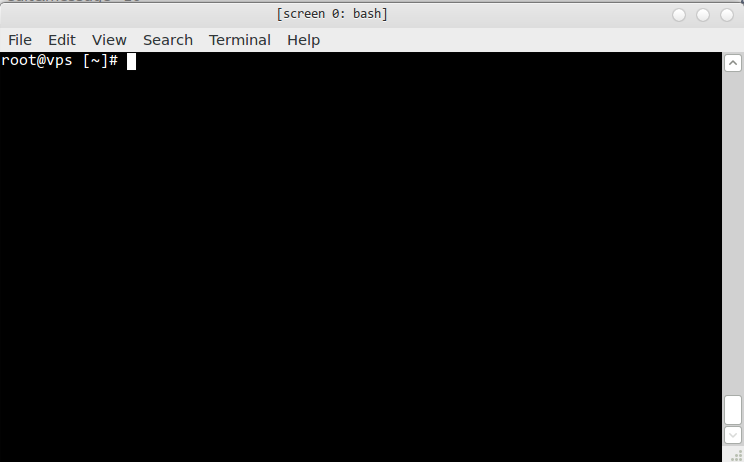
screen 0: menjalankan perintah mtr
kemudian buat sesi screen baru lagi dengan menggunakan perintah “ctrl+a+c“, lalu jalankan perintah “ping” misalnya.

screen 1: menjalankan perintah ping
sekarang cobalah berganti sesi screen sebelumnya menggunakan perintah “ctrl+a+p“, dan coba ke screen selanjutnya dengan perintah “ctrl+a+n“.
Selanjutnya adalah coba kembali ke sesi SSH biasa atau dengan kata lain deattach (bukan menghentikan screen) dengan perintah “ctrl+a+d“.
Untuk melihat daftar screen yang ada, gunakan perintah
screen -ls

melihat daftar sesi screen
Untuk menghubungkan kembali ke salah satu screen, gunakan perintah “screen -r nomor_screen“, contoh
screen -r 21588.pts-1.vps
Lalu bagaimana jika koneksi saya terputus? Tinggal koneksi saja via ssh, lalu lihat screen yang ada, kemudian hubungkan seperti langkah diatas.
Semoga bermanfaat
Regards,
Source : http://hostuner.com/linux-screen/

Friday, March 7, 2014

Blok IP Kantor

Blok IPv4 Kantor
- 117.20.48.0/20
- 202.65.112.0/20
- 202.152.128.0/19

Blok IPv6 Kantor
- 2401:ee00::/32

Thursday, January 30, 2014

Installing Apache2 With PHP5 And MySQL Support On CentOS 5.3 (LAMP)

LAMP is short for Linux, Apache, MySQL, PHP. This tutorial shows how you can install an Apache2 webserver on a CentOS 5.3 server with PHP5 support (mod_php) and MySQL support.
I do not issue any guarantee that this will work for you!

1 Preliminary Note

In this tutorial I use the hostname server1.example.com with the IP address 192.168.0.100. These settings might differ for you, so you have to replace them where appropriate.

2 Installing MySQL 5.0

To install MySQL, we do this:
yum install mysql mysql-server
Then we create the system startup links for MySQL (so that MySQL starts automatically whenever the system boots) and start the MySQL server:
chkconfig --levels 235 mysqld on
/etc/init.d/mysqld start
Run
mysqladmin -u root password yourrootsqlpassword
mysqladmin -h server1.example.com -u root password yourrootsqlpassword
to set a password for the user root (otherwise anybody can access your MySQL database!).

3 Installing Apache2

Apache2 is available as a CentOS package, therefore we can install it like this:
yum install httpd
Now configure your system to start Apache at boot time...
chkconfig --levels 235 httpd on
... and start Apache:
/etc/init.d/httpd start
Now direct your browser to http://192.168.0.100, and you should see the Apache2 placeholder page:

Apache's default document root is /var/www/html on CentOS, and the configuration file is /etc/httpd/conf/httpd.conf. Additional configurations are stored in the/etc/httpd/conf.d/ directory.

4 Installing PHP5

We can install PHP5 and the Apache PHP5 module as follows:
yum install php
We must restart Apache afterwards:
/etc/init.d/httpd restart

5 Testing PHP5 / Getting Details About Your PHP5 Installation

The document root of the default web site is /var/www/html. We will now create a small PHP file (info.php) in that directory and call it in a browser. The file will display lots of useful details about our PHP installation, such as the installed PHP version.
vi /var/www/html/info.php
<?php
phpinfo();
?>
Now we call that file in a browser (e.g. http://192.168.0.100/info.php):
Click to enlarge
As you see, PHP5 is working, and it's working through the Apache 2.0 Handler, as shown in the Server API line. If you scroll further down, you will see all modules that are already enabled in PHP5. MySQL is not listed there which means we don't have MySQL support in PHP5 yet.

6 Getting MySQL Support In PHP5

To get MySQL support in PHP, we can install the php-mysql package. It's a good idea to install some other PHP5 modules as well as you might need them for your applications. You can search for available PHP5 modules like this:
yum search php
Pick the ones you need and install them like this:
yum install php-mysql php-gd php-imap php-ldap php-odbc php-pear php-xml php-xmlrpc
Now restart Apache2:
/etc/init.d/httpd restart
Now reload http://192.168.0.100/info.php in your browser and scroll down to the modules section again. You should now find lots of new modules there, including the MySQL module:
Click to enlarge

7 phpMyAdmin

phpMyAdmin is a web interface through which you can manage your MySQL databases.
First we enable the RPMforge repository on our CentOS system as phpMyAdmin is not available in the official CentOS 5.3 repositories:
On x86_64 systems:
wget http://packages.sw.be/rpmforge-release/rpmforge-release-0.3.6-1.el5.rf.x86_64.rpm
rpm -Uvh rpmforge-release-0.3.6-1.el5.rf.x86_64.rpm
On i386 systems:
wget http://packages.sw.be/rpmforge-release/rpmforge-release-0.3.6-1.el5.rf.i386.rpm
rpm -Uvh rpmforge-release-0.3.6-1.el5.rf.i386.rpm
phpMyAdmin can now be installed as follows:
yum install phpmyadmin
Now we configure phpMyAdmin. We change the Apache configuration so that phpMyAdmin allows connections not just from localhost (by commenting out the <Directory "/usr/share/phpmyadmin"> stanza):
vi /etc/httpd/conf.d/phpmyadmin.conf
#
#  Web application to manage MySQL
#
#<Directory "/usr/share/phpmyadmin">
#  Order Deny,Allow
#  Deny from all
#  Allow from 127.0.0.1
#</Directory>
Alias /phpmyadmin /usr/share/phpmyadmin
Alias /phpMyAdmin /usr/share/phpmyadmin
Alias /mysqladmin /usr/share/phpmyadmin
Next we change the authentication in phpMyAdmin from cookie to http:
vi /usr/share/phpmyadmin/config.inc.php
[...]
/* Authentication type */
$cfg['Servers'][$i]['auth_type'] = 'http';
[...]
Restart Apache:
/etc/init.d/httpd restart
Afterwards, you can access phpMyAdmin under http://192.168.0.100/phpmyadmin/:

Source : http://www.howtoforge.com/installing-apache2-with-php5-and-mysql-support-on-centos-5.3-lamp

Monday, January 27, 2014

INSTALL AND CONFIGURE NTP SERVER ON CENTOS 5

Quick setup instructions to install and configure an NTP server:
# yum install ntp
# chkconfig ntpd on
Add the servers you want to sync from in /etc/ntp.conf. Sample:
server 0.centos.pool.ntp.org
server 1.centos.pool.ntp.org
server 2.centos.pool.ntp.org
# service ntpd start
# ntpq -pn
-H